
 Cut
Cut
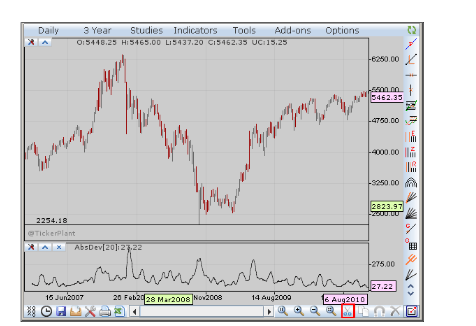
The cut option can be activated either on right click of the particular tool or on selection of the respective control on the charts panel as highlighted in the image above
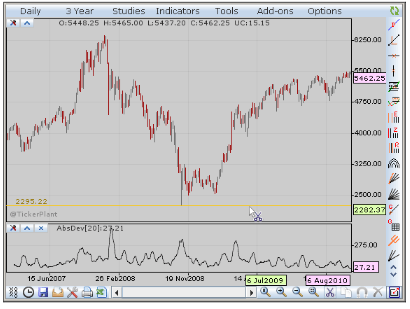
The cursor in the above image indicates that the cut option has been activated. The tool selected subsequently is cut (ready to be moved) from the particular position or scale and pasted on the required position
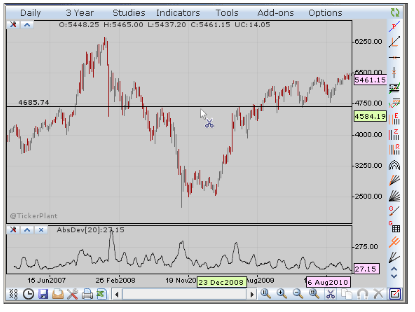
The tool is moved (or pasted) on the required location. On pasting, the cut option is seen to remain activated.
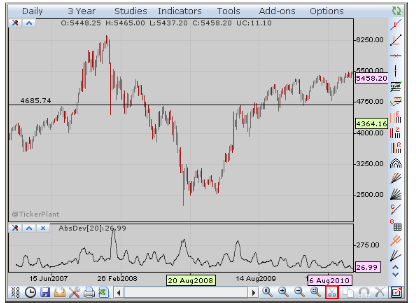
If required, the use of cut option can be continued or the same can be disabled by selecting the highlighted tab in the chart control panel as seen above
 Copy & Paste
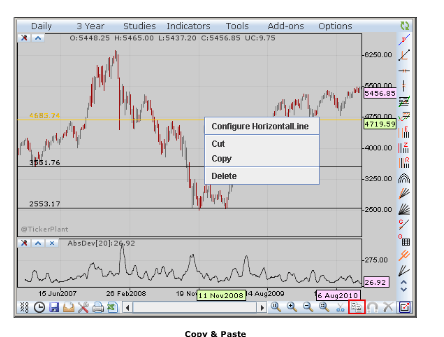
TickerPlant Chart enables the user to conveniently copy and paste the tools. The user has an option either to activate the copy and paste feature on right click or by selecting the tool for copy available on the chart control panel as highlighted
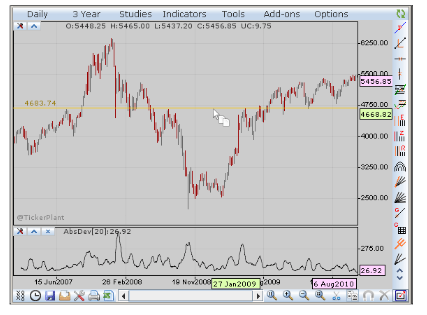
The cursor in the above image indicates that the copy feature has been activated. Once the copy feature is activated, the tool that is selected subsequently is copied and ready to be pasted
Note that copy option can be disabled on selecting the copy tool in the charts control panel once again
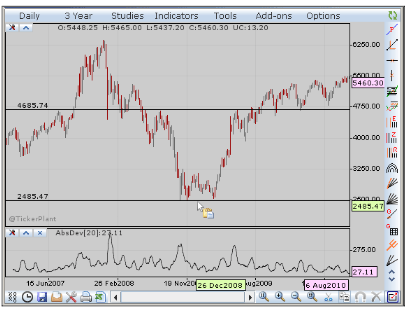
Once copied, the selected tool is ready to be pasted as displayed in the image above.
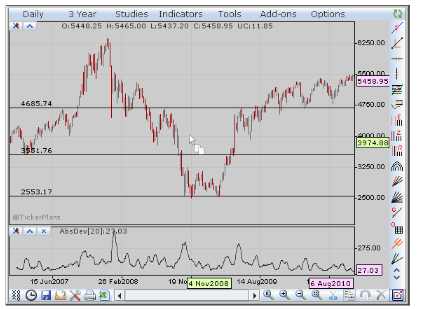
Once pasted, the copy feature is automatically reactivated unless disabled. As mentioned above the copy feature is disabled by selecting the copy tool once again on the chart control panel
Comments
0 comments
Please sign in to leave a comment.