
Right-click option allows you to do the following:
|
Option |
Description |
|
Portfolio Setting |
Allows you to:
|
|
Column Setting |
Allows you to:
|
|
Select fields |
Select and customize the required set of fields for display in a particular MarketWatch window. |
|
ScrollBars |
Allows you to select horizontal and vertical scrollbar To remove scrollbars, deselect the option |
|
Visual Settings |
Allows you to customize the look of your MarketWatch window by changing the:
See also: |
|
Show/Hide |
Allows you to show/hide:
|
|
Tools |
Allows you to:
|
|
Export Excel |
Allows you to export the Market Watch profile to an excel workbook. |
|
Chart |
Allows you to view the selected symbol in a chart format. |
|
Alert |
Allows you to set up alerts which get displayed when the alert conditions are met. |
|
Get Quote |
Allows you to view the price quote information of the selected symbol |
|
Time & Sales |
Displays real-time tick-wise information:
You can also set a filter on tick volume |
|
Market Depth |
Allows you to view real-time market depth information such as:
|
|
Corporate Info |
Allows you to view company information such as:
|
|
Pivot Point Calculator |
Provides the user with ready reference of pivot points, support and resistance levels with respect to existing price of a particular symbol |
|
Price / Yield |
This option enables the user to add the yield symbol corresponding to a particular price symbol in Market Watch and vice-versa |
|
Bonds |
Enables the user to generate a separate Market Watch for the respective NSE scrip and bonds corresponding to that scrip from the NSE-WDM segment |
|
Futures |
The user can readily add corresponding futures contract whether NEAR/NEXT/FAR month or ALL of the three contracts for the selected NSE scrip in Market Watch |
|
News |
Displays TickerNews or Dow Jones news for the selected symbol |
|
Manage Object |
Allows you to copy or cut and subsequently paste the selected window. |
Right-click option on column header in Market Watch
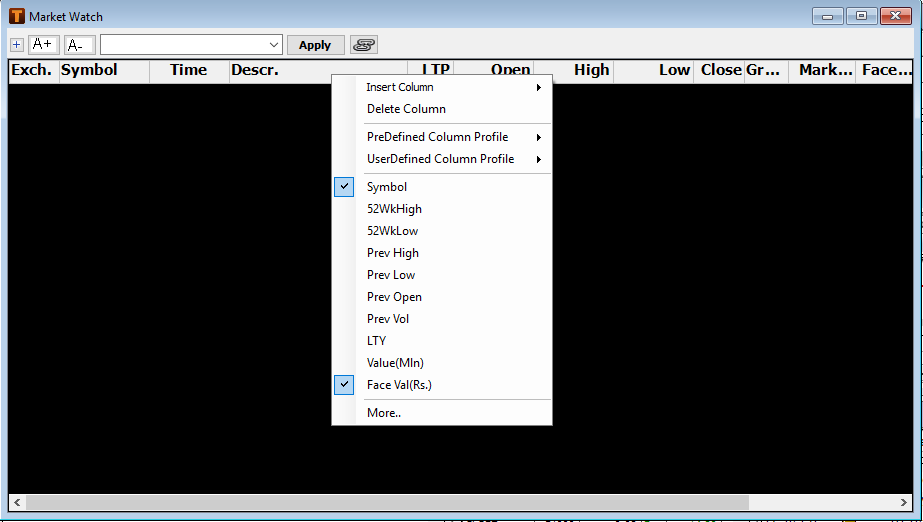
On right click of column header in Market Watch user has the following options
-
Insert Column
-
Delete Column
-
Apply a pre-defined column profile for a particular asset class
-
Apply a user created column profile
Right-click functions are standardized across segments; however, they may vary based on the instruments. See also Understanding Right-Click Options.
Comments
0 comments
Please sign in to leave a comment.