
You can:
-
Set up your column profile
-
Sort the column profile
-
Configure custom columns
-
Add a column separator
-
Adjust column width
To set up your column profile
-
Right-click a MarketWatch window and select Column Settings > Column Profile.
OR
Select a MarketWatch window and click Tools > ColumnProfile.
The MarketWatch-Column Selection window is displayed.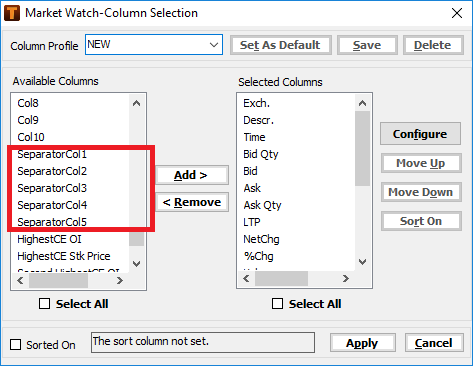
-
In Column Profile, enter the name for your column profile.
-
From Available Columns list, select desired columns and click Add >.
The selected column is displayed in Selected Columns list.
Click Select All to select all the columns.
-
Repeat step 3 to add more columns, if required.
-
Select a column from Selected Columns and click Move Up or Move Down if you want to change the column positions.
OR
Drag and drop a column to the required position.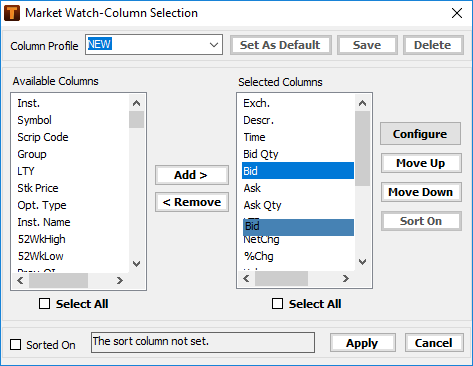
-
Click Save.
Your column profile is saved.Click Set As Default to set this column profile as a default for all subsequently opened MarketWatch windows
-
Click Apply.
The column profile is applied to your current Market Watch window.
To apply pre-defined or user defined column profile
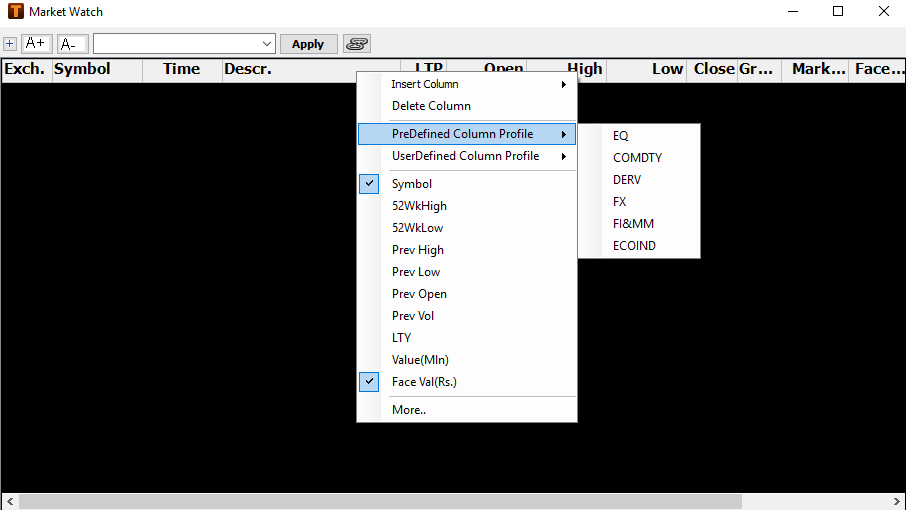
On right click on COLUMN HEADER in Market Watch, the user is able to select and apply either
-
One of the default column profiles provided pertaining to various asset classes including Equity, Commodity, Derivatives, Forex and Fixed Income & Money Market (FI&MM)
-
One of the user created column profiles available as a list under the option for user defined column profile
To sort the column profile
-
Right-click a Market Watch window and select Column Settings > Column Profile.
OR
Select a Market Watch window and click Tools > ColumnProfile.
The MarketWatch – Column Selection window displays.
-
Select the Sorted on checkbox.
-
Select a column that you want to sort the data from Selected Columns.
-
Click Sort On.
The column profile is sorted on the selected column.
To configure a custom column
-
Right-click a MarketWatch window and select Column Settings > Column Profile.
OR
Select a MarketWatch window and click Tools > ColumnProfile.
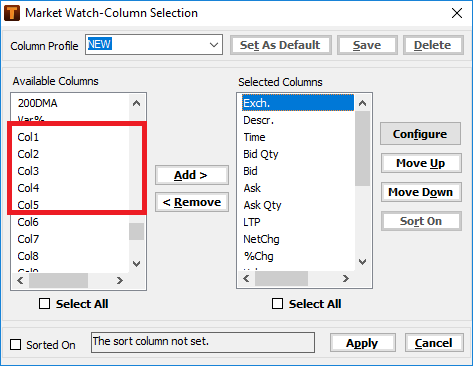
The MarketWatch – Column Selection window displays.
-
Select a custom column from Available Columns and click Add.
The custom column is displayed in Selected Columns.
-
Select the custom column from Selected Columns and click Configure.
The Configure Column window displays.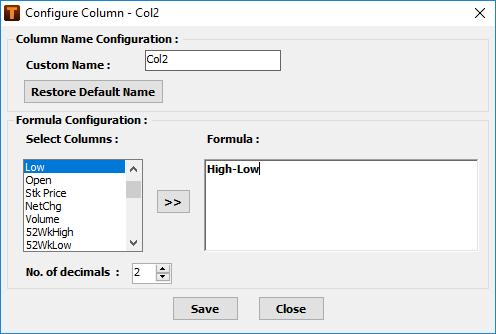
-
Enter a custom name for the column.
-
From Formula Configuration > Select Columns, select a column and click
 .
.
The column name is displayed in the Formula section.
-
Specify any numerical operator.
For example, +, -
-
Repeat step 5 to add any other column for creating a custom formula.
For example, if you want the custom column to show the difference between the day’s high value and the day’s low, first select High from Select Columns and then click
. Type “-“ and then select Low from Select Columns and click .You get the formula “High – Low”.
-
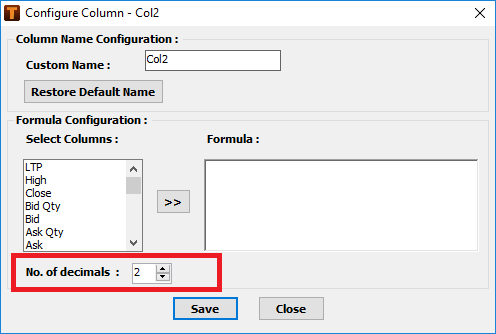
The decimal precision for the configured column can be set
-
Click Save to save the custom column configuration.
-
Click Apply.
The MarketWatch window displays the custom column.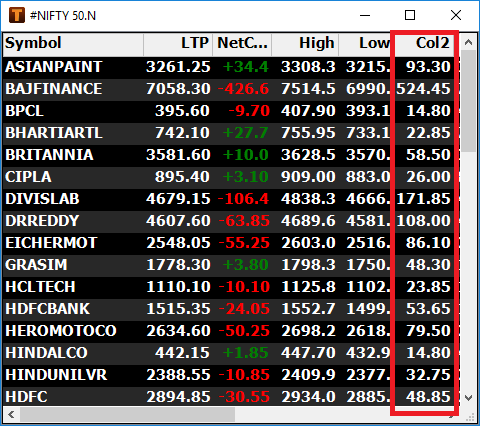
To add a column separator
You can add a column separator to separate the data columns for better clarity.
-
Right-click a MarketWatch window and select Column Settings > Column Profile.
OR
Select a MarketWatch window and click Tools > ColumnProfile.
The MarketWatch – Column Selection window displays.
You can also add Column Separator from ‘Select Fields’ and then save the applied column profile.
-
Select a column separator from Available Columns and click Add.
The column separator is added in the Selected Columns.
-
Select the column and click Move Up or Move Down to place the separator between the desired columns.
You can also drag and drop the separator to the required position.
-
Click Apply.
The system prompts you to save the column profile.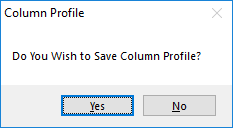
-
Click:
-
Yes to save and apply the profile to the MarketWatch window
-
No to only apply the profile to the MarketWatch window without saving
The column separator is displayed between the desired columns in the MarketWatch window.
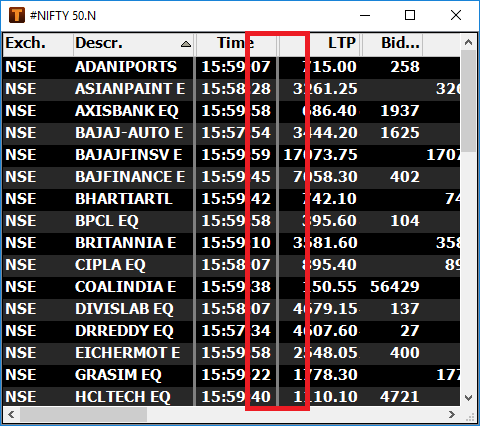
To adjust column width
You can resize the column width to fit in the MarketWatch Instrument window.
-
Right-click and select Column Settings > Size To Fit.
The column width is resized to fit in the instrument window.
For example


Comments
0 comments
Please sign in to leave a comment.