
MarketView® allows you to export data to Microsoft Excel. You can export:
-
Static Reports
-
Real-time Reports
-
Charts
-
Performance Charts
To export report based data to Microsoft Excel
-
Open any report from the menu and right-click.
This displays the right-click options.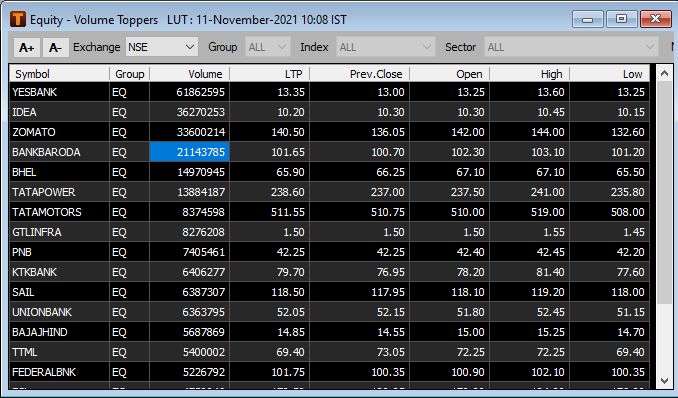
-
Choose Export Excel.
The data is exported to Microsoft Excel.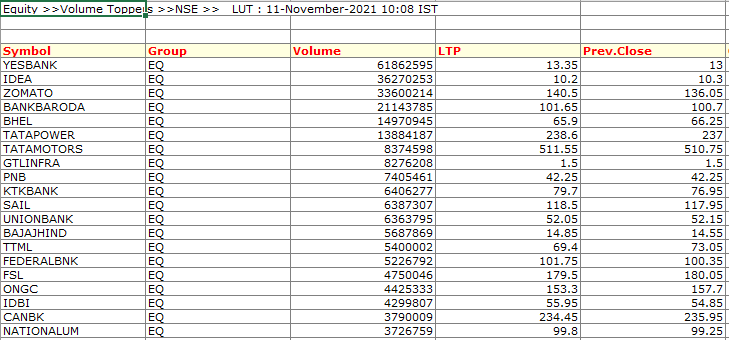
To export real-time data to Microsoft Excel
Only data exported to excel from MarketWatch will update on a real time basis
-
Right-click in MarketWatch.
This displays the right click options.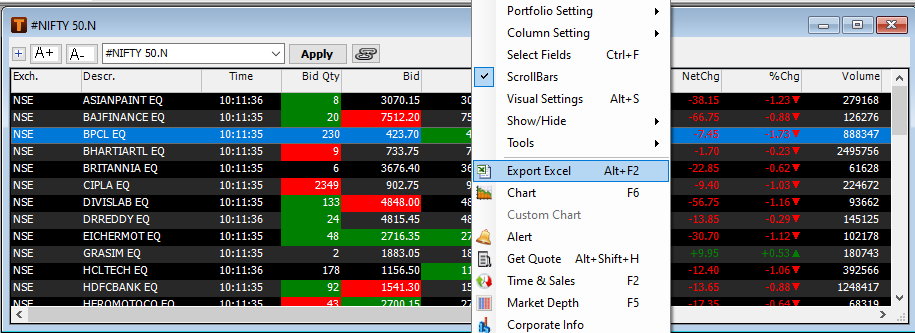
-
Choose Export Excel.
The data is exported to excel and is updated on a real-time basis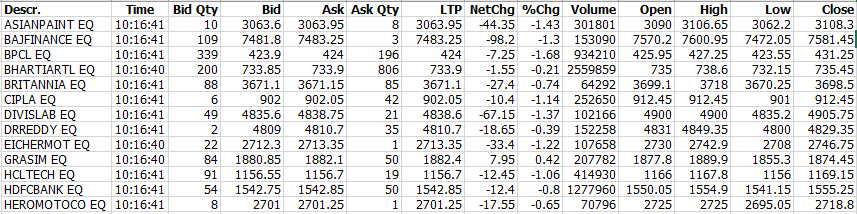
Alternatively, click the  icon from Module List to export real-time data to excel.
To export real time data in particular row or cell of Market Watch to Microsoft Excel
-
Drag and Drop from 'Description' or 'Symbol' column in Market Watch to Excel
-
The selected row is seen updating in Excel on a real time basis
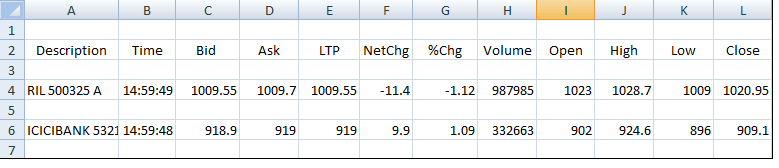
-
Drag and Drop from any column other than Description or Symbol will update the value in particular cell on a real time basis in Excel
-
The real time updates for the selected cell can be viewed in Excel
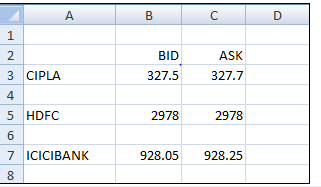
The above features are also applicable to Forex – Forward Rate Calculator
The real time updates in Excel are independent of Market Watch with the only requirement of MarketView Desktop Terminal to be logged in
To export data from charts to excel
-
Right-click in the chart.
This displays the right-click options.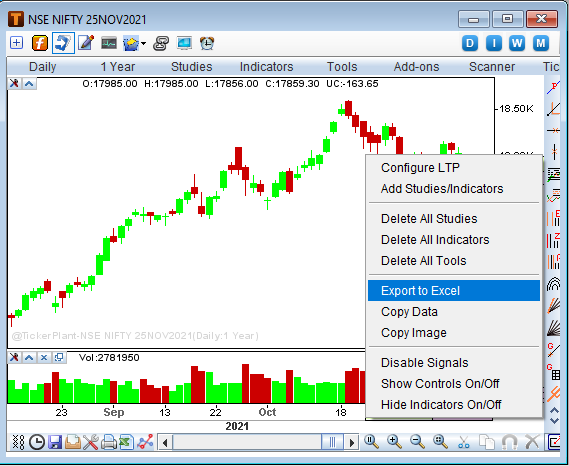
-
Choose Export to ExcelSheet.
The Save dialog box opens.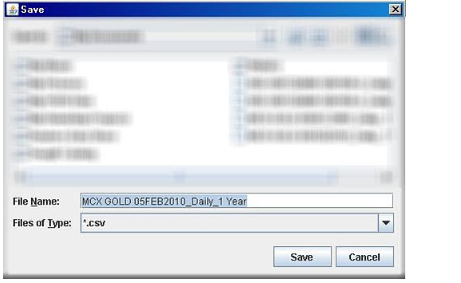
-
Click Save.
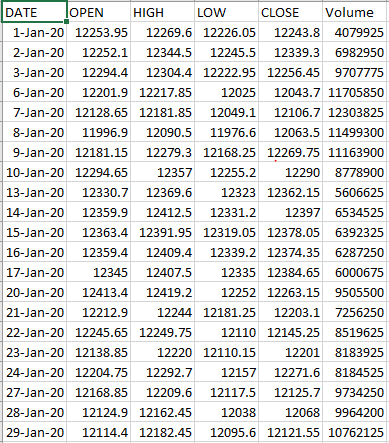
The data is saved in a .csv format that can be opened in Excel. -
Open the file from the saved location.
-

To export data from performance charts to excel

-
Right-click in the performance chart.
This displays the right-click options.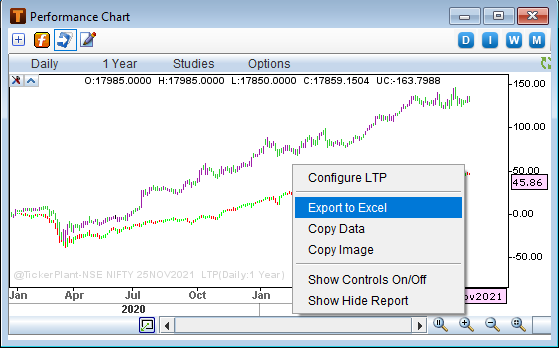
-
Choose Export to ExcelSheet.
The Save dialog box opens.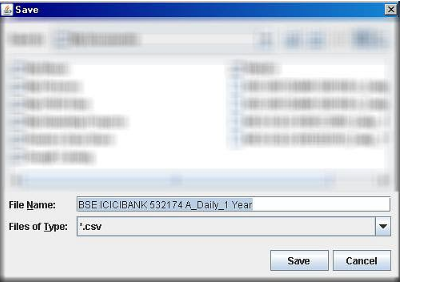
-
Click Save.
The data is saved in a .csv format that can be opened in Excel. -
Open the file from the saved location.
-
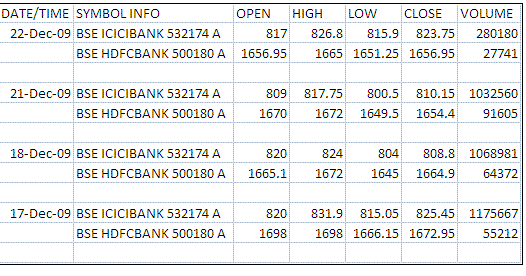
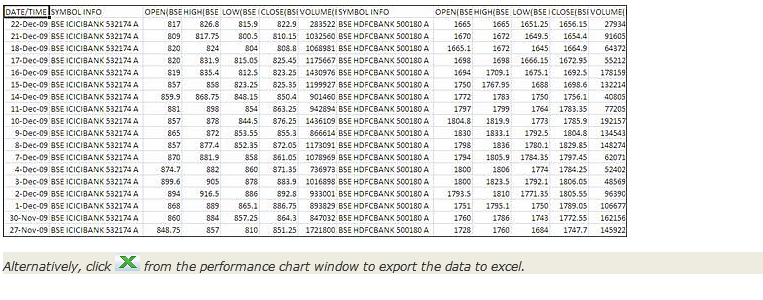
The data displayed depends on whether you have selected the horizontal or vertical format in the General tab of Preferences.
For example:
-
If you have selected the vertical format, the data displays as follows:
-
If you have selected the horizontal format, the data displays as follows:
Comments
0 comments
Please sign in to leave a comment.