
MarketView® allows you to set up alerts which get displayed when the alert conditions are met.
You can:
-
Create an Alert
-
Check Alert History
To create an alert
You can create an alert for instruments from different market segments along with a customized message using:
-
Alerts option from tools
-
Right-click option
-
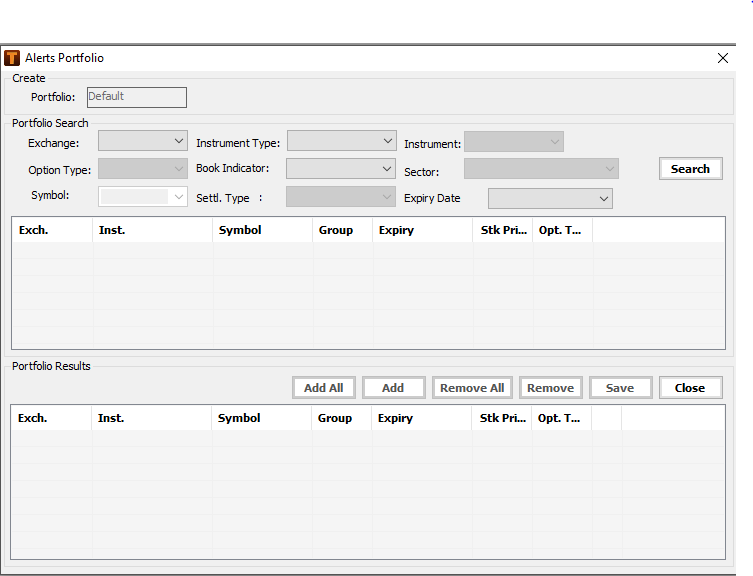
From Portfolio Search > Exchange, choose an exchange.
-
Specify the options in Portfolio Search:
The search options that are displayed depend on your chosen exchange.
-
Fields
Description/Example
Instrument Type
Type of instrument.
For example, Spot, F&O.
Instrument
Instrument name.
For example, commodity futures, currency futures, Index Futures , Index Options , Stock Futures , Stock Options in case of F&O.
Option Type
Call or put option.
Index
The index the instrument belongs to.
For example, BSE, NSE.
You can search for all scrips within an index by choosing the index name from Index and then add them to your portfolio.
Sector
Specify an economic category to search scrips within a particular sector.
For example, Banks, IT, Metals, Construction.
Symbol
Enter the symbol of the instrument you want to add to your portfolio.
We use the exchange symbology. Enter at least two characters from the symbol to get the required instrument.
For example, to add Reliance Industries type:
Reliance for NSE
RIL for BSE
Group/Series
Specify the group to which the instrument belongs. Specify group / series if the instrument needs to be searched on those parameters.
For example, in case of BSE stocks, you specify the group as A, B, S, etc.
Contract Type
Specify whether the futures contract required is a NEAR/ NEXT / FAR month contract.
Expiry Date
Specify the expiry date for the option.The futures contract will automatically rollover on expiry in case contract type is specified i.e. NEXT/NEXT/FAR month contract instead of a particular expiry date.
Trading Type is displayed in case of international exchanges where trading types such as ring, electronic, interoffice etc. exists
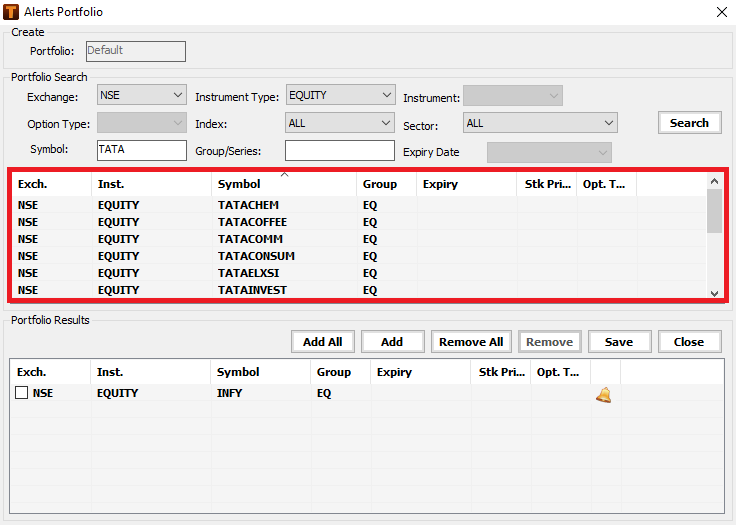
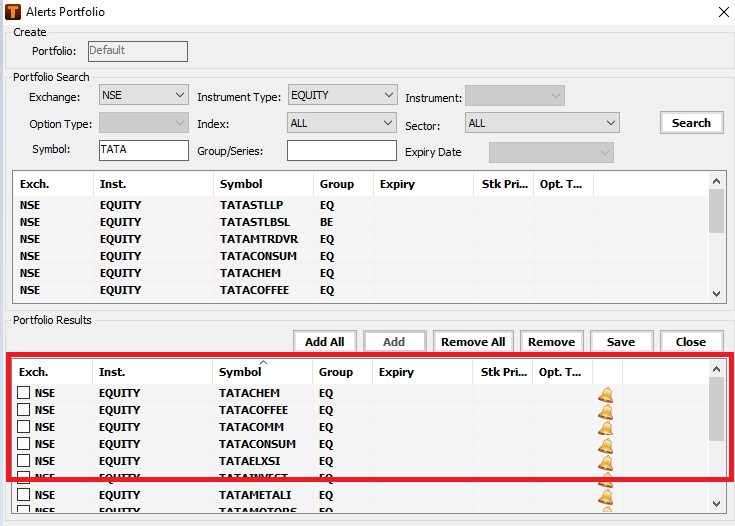
Click Add All to add all the search results in Portfolio Results
Select an entry from Portfolio Results and click Remove to remove it from the results list.
Click Remove All to remove all the entries from the Portfolio Results.
-
Activate the desired alert by selecting
 .
.
Selecting this check box will manually activate the alerts. To automatically activate the alerts, refer to Setting up Alerts using right click option.
-
Click
OR
Right-click the instrument from any report, click Alerts
The Create Alerts window is displayed.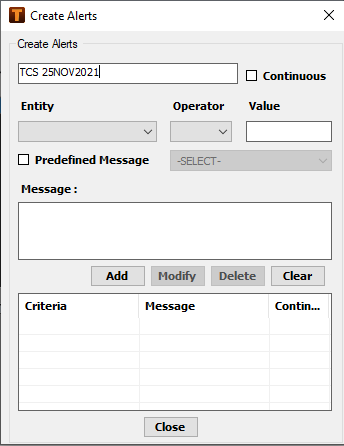
-
Specify the alert options:
Option
Description
Entity
Select the criteria for triggering the alert.
For example: Last traded price, high price, low price, total traded volume, etc.
Operator
Specify the operators.
For example: >, <, >=, <=, =
Continuous
Specify whether the alert should be continuous or not. If the alert is not continuous than it will trigger only the first time the alert condition is met. In case the alert is set as continuous than it will trigger each time the set condition or parameter is met or breached
Value
Specify the value that triggers an alert when the condition is met.
Predefined Message
Predefined messages Buy, Sell, Short and Short Exit are available in Create Alert window.The user has an option to either select one of the predefined messages or provide a customized message that would be displayed when the alert condition is matched
Message
Type a customised message that is displayed when a specific alert triggers.The option to input a customized message is available when a pre-defined message is not selected
-
Select Continuous if you want to set a continuous alert.
A continuous alert is triggered every time the condition is met; otherwise it is triggered only once.
For example, if you specify the trigger as “Last traded price for Federal Bank is > 60” and select Continuous, the alert is triggered every time Federal Bank breaches the 60 level and then rises again above 60.
-
Click Add.
The alert is displayed in the criteria table.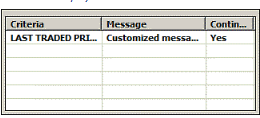
Click Modify to make changes to the selected entry.
Click Delete to remove the selected entry from the criteria table.
-
Click Close.
The Create Alerts window closes.
-
Select the scrip from the Portfolio Results to activate the particular alert.
-
Click Save.
The PortFolio window is displayed.
-
Click Yes to save the portfolio.
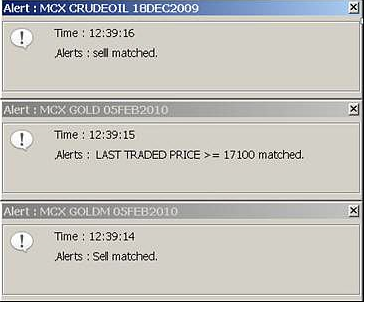
Your alert portfolio is created.When the alert condition is matched, an alert pop-up is displayed on the bottom right of your screen as shown below.
To view alert details
-
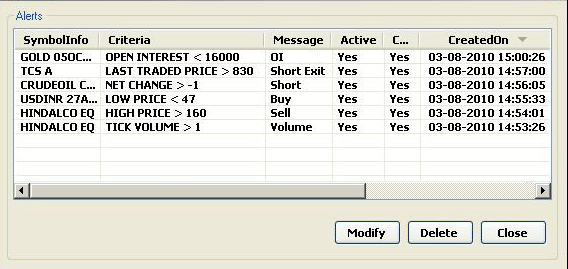
Click Alerts > Show Alerts to view details of all current alerts.
Alert details
-
Column
Description
Symbol
Displays the symbol for which the alert is set.
Criteria
Displays the criteria set that triggers an alert.
Message
Displays the customized message.
Active
Specifies whether the alert is active or inactive.
Continuous
Specifies whether the alert is continuous or not.
Created On
Displays the date and time the alert was created or last modified
Modify
Select the alert and click modify to make changes in the particular alert condition
To delete an alert, select the alert and click Delete
To view alert history
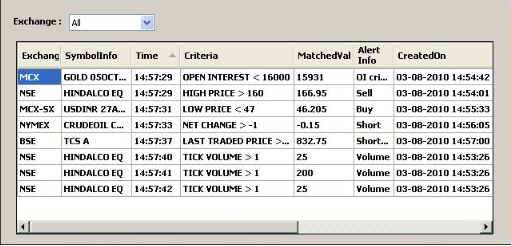
You can view the alert history for all exchanges from the Alert History window.
-
In Exchange, choose the desired exchange.
The details are displayed in the Alert History window and can be exported to excel on right click
To set alerts on
You have to Set Alerts ON to display them in your workspace.
-
Click Tools > Alerts > Set Alerts ON.
The alerts are set to ON.
When the alert condition is matched, the alert pop-up is displayed on the bottom right of the screen.
Comments
0 comments
Please sign in to leave a comment.