
You can filter news using the News Filter Manager.
To create a News filter
-
Click News > News Filter Manager.
The Filter Manger is displayed.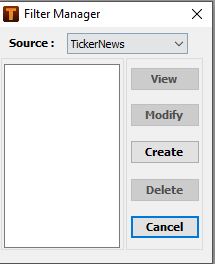
-
From Source, choose a news source.
For example: TickerNews. -
Click Create.
The News Filter: TickerNews is displayed.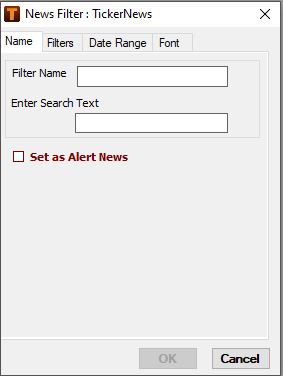
-
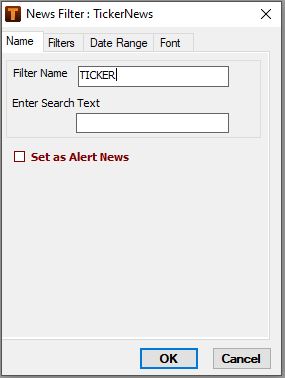
Enter a name in the Filter Name.
-
Enter a keyword in the Search Text, if required.
You can choose to search for the exact keywords or use a combination of keywords and logical operators. See To use logical operators in keyword search
News headlines containing this keyword are filtered.
-
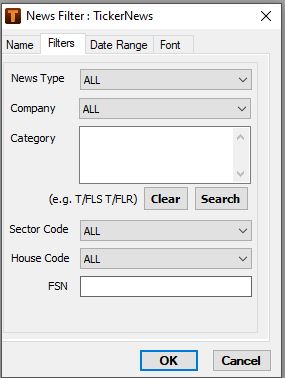
Click the Filters tab to select additional filtering options, if required.
-
Click Search to choose additional filter options, if required.
TickerPlant News Category opens.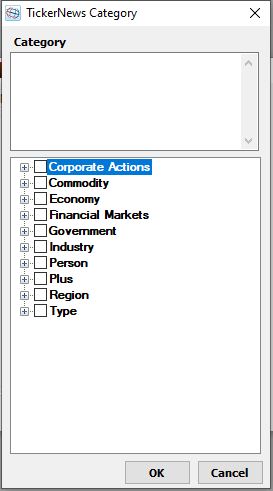
The news filters that are displayed depend on the news sources selected
-
Select the required news category and click OK.
The selected categories are displayed in the Filter Manager.
The Filter Manager allows you to select preferred sub-categories under different categories for TickerPlant and Money Life.
-
Click OK.
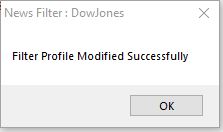
The news filter profile is saved.
The categories change depending on the news source selected.
To modify a News filter
-
Click News > News Filter Manager.
The Filter Manger is displayed.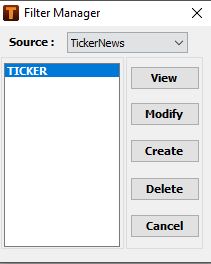
-
From Source, choose the new source that has an existing news profile.
For example: TickerPlant News -
Click Modify.
The News Filter window opens. -
Follow the steps given in To create a news filter
To view News headlines for a specific time period
-
Create or modify an existing news filter.
The News Filter window opens. -
Click Date Range.
The Date Range tab displays.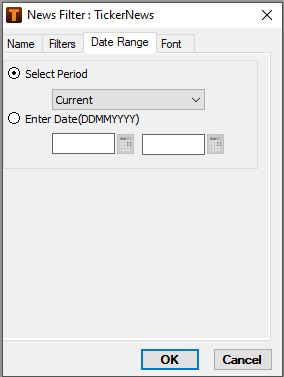
-
Specify one of the following date range options:
-
in Select Period, select a specific time period
-
in Enter Date (DDMMYYYY), enter the specific date range
-
-
Click OK.
The filter profile is saved. When the filter profile is applied, only the news headlines from the specified date range are displayed.
To apply a News filter
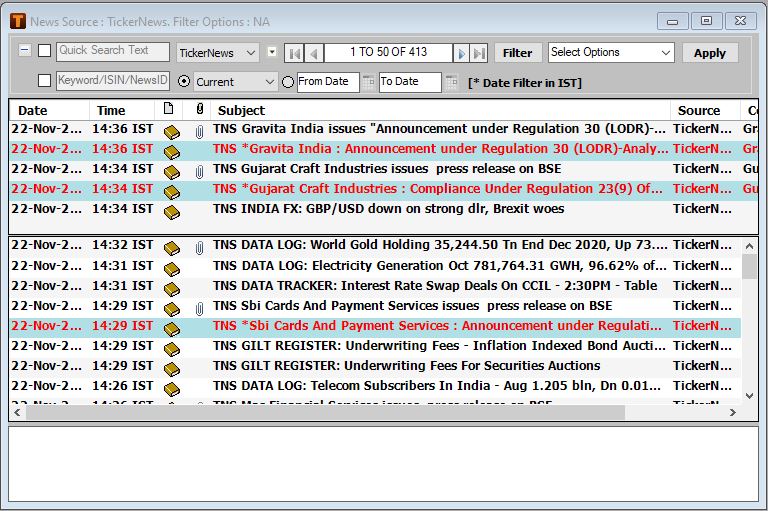
-
From Filter, choose a filter.
The list of filter profiles created for the selected source is displayed.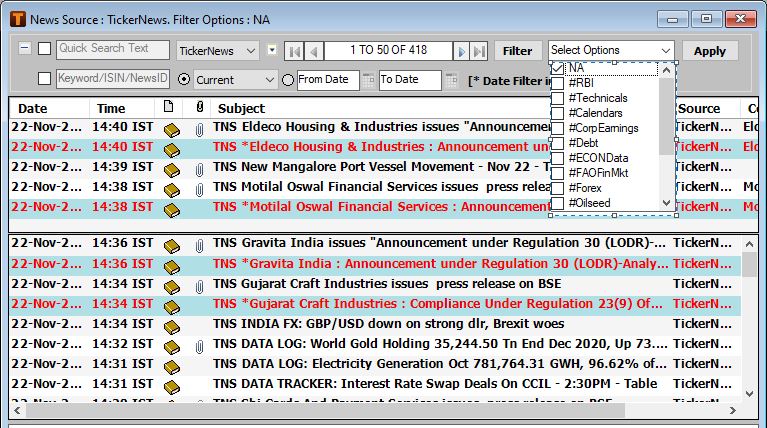
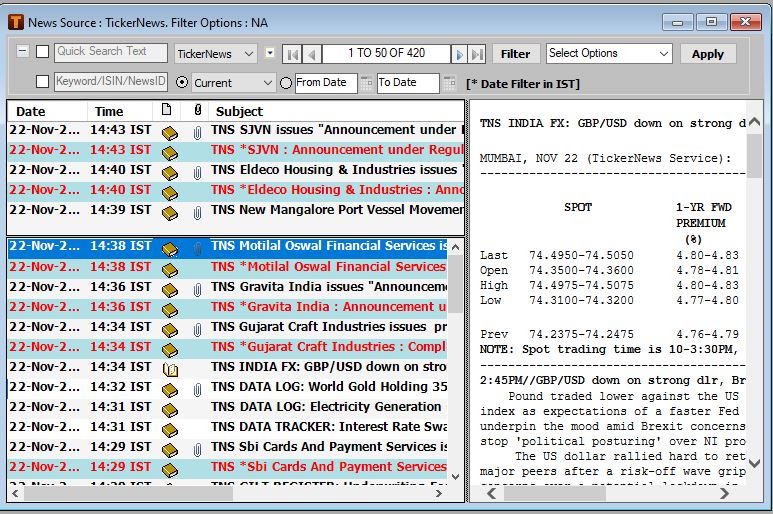
To apply a pre-defined News filter
-
From News, select the option ‘ALL’ for all sources
-
When the option for ‘ALL’ news sources is selected, the pre-defined filters are available in the Filter dropdown as displayed
-
On selecting and applying a pre-defined filter the relevant news are available
The pre-defined filters include important parameters such as Econdata, Forex, Technicals ,Debt etc. that will readily filter relevant news for that particular category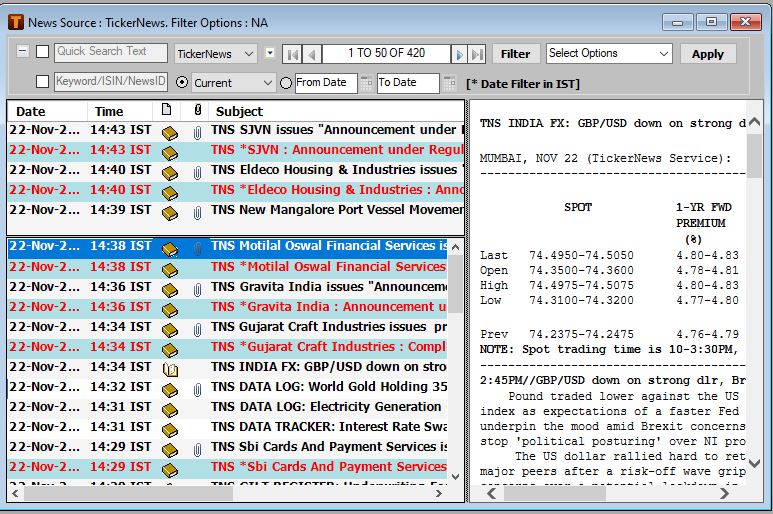
To view profile based news
-
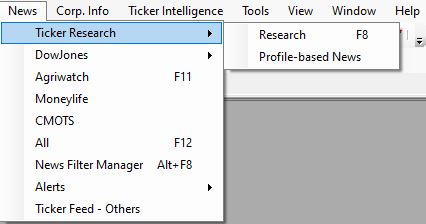
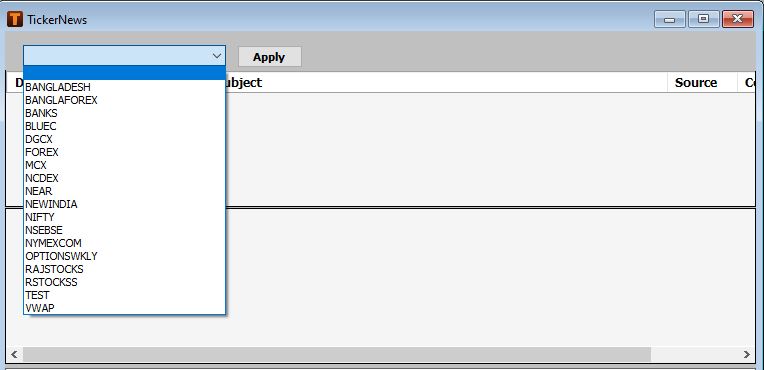
Select TickerNews Service
-
-
Select the required Market Watch portfolio
-
Click Apply
The online news pertaining to symbols in the portfolio are displayed
The profile based news displays online Ticker News applicable to equity symbols in the applied profile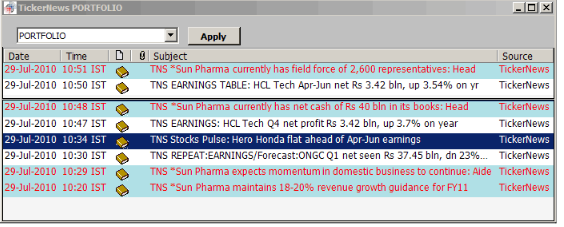
To set up a News alert
-
Create or modify an existing news filter.
The News Filter window opens.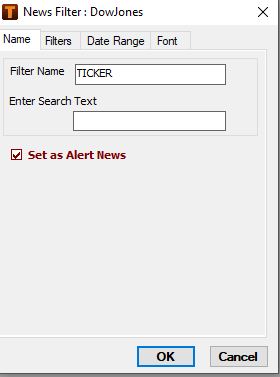
-
Select the Set as Alert News checkbox.
-
Click OK.
A news alert is displayed whenever any news headline matches the filter criteria.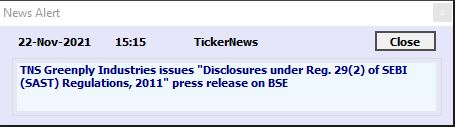
Click News >Alerts > Alert History to review the news alerts for the day
Click News > Alerts > Set Alert News On to display any news alert
To change font settings
You can change the font setting for different news filters.
Comments
0 comments
Please sign in to leave a comment.