
Right-click in the News window
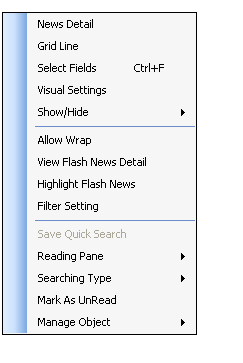
Right-click option allows you to do the following:
|
Option |
Description |
|
News Detail |
Allows you to view the detailed news story |
|
Grid Line |
Displays grid lines in the news window |
|
Select fields |
Select the fields to be displayed in the News window. The fields include
|
|
Visual Settings |
Allows you to customize the look of your News window by changing the:
See also: Applying News Settings |
|
Show/Hide |
You can choose to show or hide the:
|
|
Allow Wrap |
Allows you to view a long headline completely by wrapping the text |
|
View Flash News Detail |
Displays flash news You can double-click on flash news and open it in News Detail window. |
|
Highlight Flash News |
Highlights the flash news You can set this option in Preferences |
|
Filter Setting |
Opens the Filter Manager |
|
Save Quick Search |
Allows you to save keywords as a filters entered in the Quick Search text box. |
|
Searching Type |
Allows you to choose the way how news text is searched:
|
|
Reading Pane |
Allows you to view the reading pane at the right or at the bottom of the news window. You can also turn off the reading pane. |
|
Manage Object |
Allows you to cut or copy and paste the selected window. |
Float Option – You can monitor the news on the screen even while having the application minimized using the float option
Static News Panel – You can view upto 15 latest news headlines at the top in a separate news panel, while scrolling the subsequent pages of news headlines.
You can specify the number of news headlines to be displayed in Static News Panel from Preferences. See also Applying News Settings.
Comments
0 comments
Please sign in to leave a comment.