
The Toolbarstab allows you to view following tools in the MarketView® application screen:
-
Module list
-
Quick Watch
-
Time watch
-
Index watch
-
Message bar
-
Status bar
-
Click Tools > Preferences.
The Preferences window is displayed. -
Click Toolbars.
The Toolbars tab is displayed.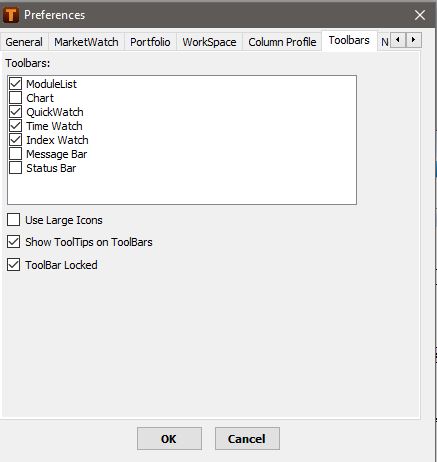
-
In Toolbars, select the required toolbar that you want to display by default.
-
Select Use Large Icons to display large toolbar icons, if required.
-
Select Show ToolTips on Toolbars, if required, to display tooltips when you place your cursor on any toolbar.
-
Select ToolBar Locked, to lock the position of the toolbars on subsequent logins.
-
Click OK.
Your settings are saved.The following screen shows the various toolbars.
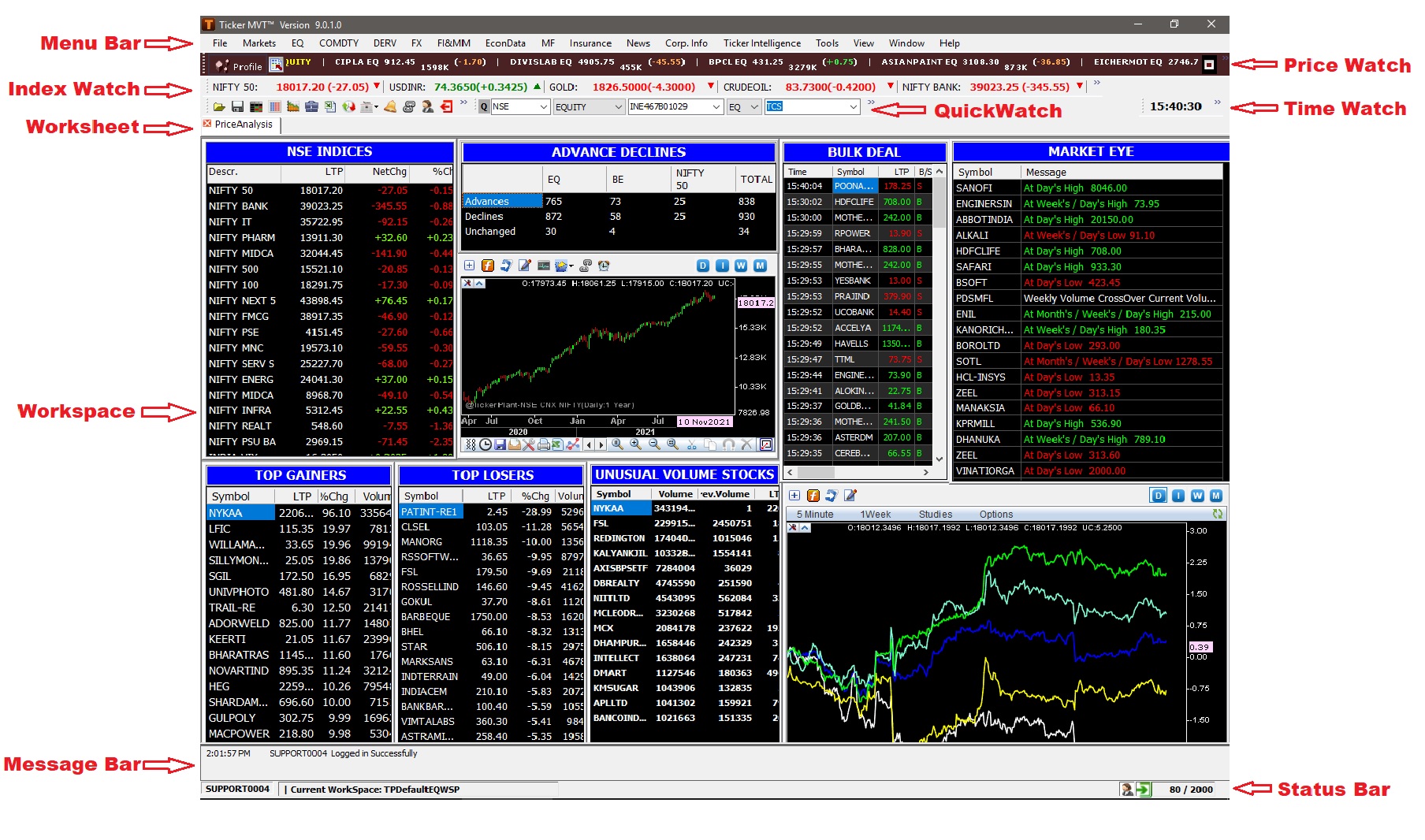
On the left of every toolbar, a move toolbar  icon is provided. Place the cursor on it > click left key and move the toolbar to the desired area in the screen.
Comments
0 comments
Please sign in to leave a comment.